

Wacom MovinkPad 11, Android Mobile Drawing Tablet, 11″ with Battery-Free Slim Pro Pen 3, 8GB RAM/128 GB Storage, Quick Draw Feature, Anti-Glare Etched Glass Matte Screen, No Computer Needed
$424.95
Related Products






Product description

What if your best ideas didn’t have to wait?
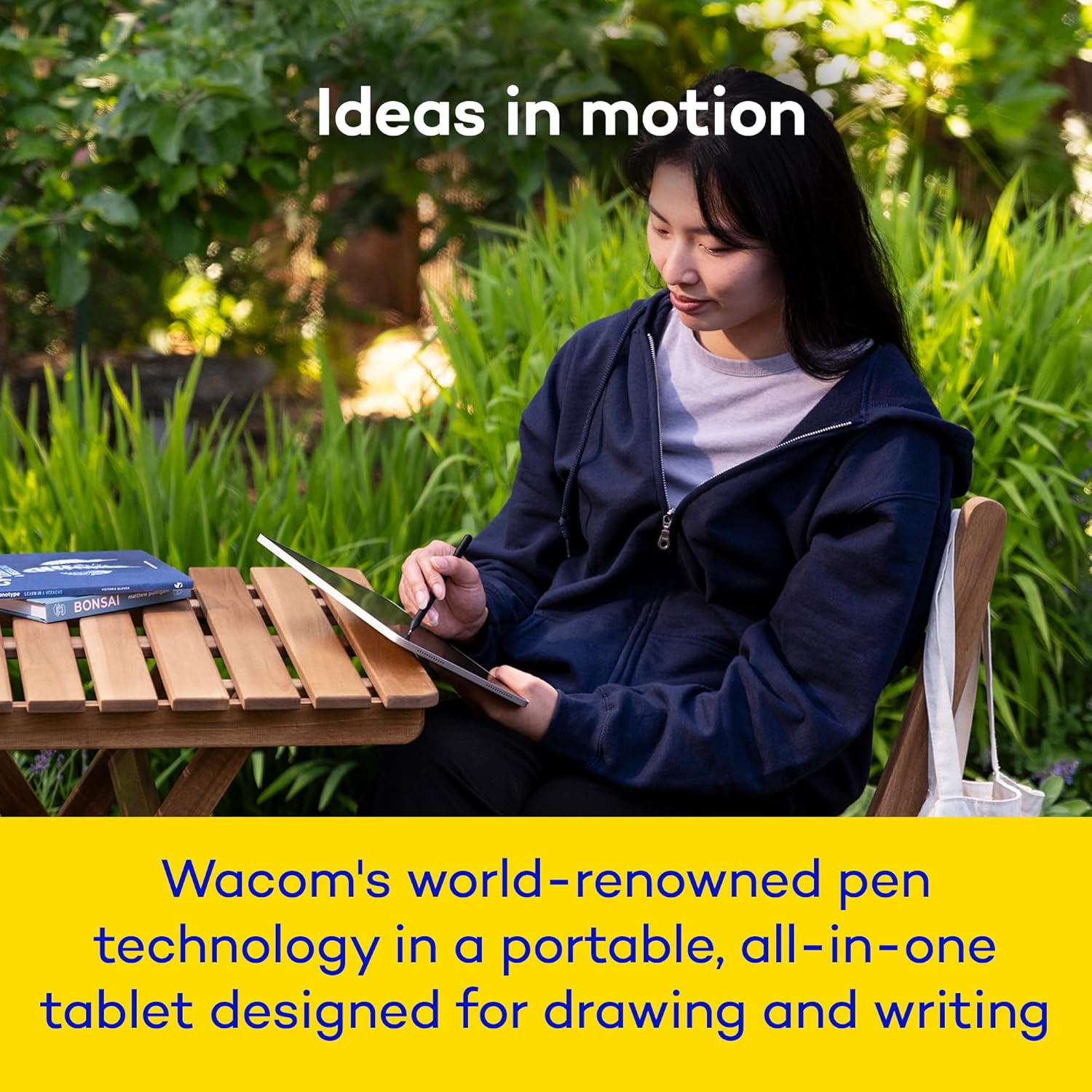
You know that feeling when inspiration hits and you need to capture it right now? The Wacom MovinkPad 11 is for moments like that. Whether you’re sketching between classes, storyboarding during your commute, or just need something that works when your brain decides to get creative at 2 AM, this all-in-one drawing tablet keeps up with your ideas. It’s light and durable enough to take with you and ready the second you pick the pen up. No limits – just draw.

Instantly capture the moment.
Start creating the moment inspiration strikes. Just tap and hold the pen on the screen to wake up the tablet and launch the Wacom Canvas sketching app – it’s just like opening a sketchbook or notepad. And once you’re ready to refine your creation, you can easily open it in Clip Studio Paint to refine and perfect it.

Creativity, unplugged.
Wacom MovinkPad 11 can go anywhere – no computer required. Now the hallway between classes, your favorite café, or your local park is your new creative studio. Built-in front and rear cameras can capture quick snapshots to record all your inspiration.

No charging, no interruptions.
The pen that comes with MovinkPad is a customized, slim version of Wacom’s Pro Pen 3. It’s the same tech that professional artists swear by, and it doesn’t need charging. You get all the pressure sensitivity and tilt detection you’d expect from a pro-level Wacom product, plus replacement nibs are stored right in the back of the pen.

Your digital sketchbook
Creative freedom in an ultra-portable 1.3 lb design. With a sharp 2200 x 1440 screen, 7700 mAh battery, and front and back cameras, it’s designed to follow your creativity anywhere with WiFi and Bluetooth connectivity.

No glare getting in the way of your art.
This tablet is built for drawing and digital art. The 11″ screen is bright and sharp, so it works well as a digital canvas. The matte finish etched glass feels like paper with a little bit of texture so it doesn’t feel slick. The screen surface reduces glare and repels fingerprints, so you can focus on your art without constantly tilting or wiping the screen.

Seamless software workflow.
Go from sketch to illustration without slowing down. The included Wacom Canvas app is perfect for sketching, and you can easily jump from there right into Clip Studio Paint to take your sketch to the next level – illustrations, manga, or anything else. Wacom MovinkPad 11 comes with 2 years of CLIP STUDIO PAINT DEBUT and 180 days of ibisPaint X Prime Membership. (Terms and Conditions apply.)

Slim, light, portable.
At 1.3 pounds and just 0.3 inches thick, the MovinkPad slips easily into most bags or backpacks while staying durable enough for daily use. The 7,700 mAh battery keeps you drawing for hours, so whether you’re on the sofa, in the backyard or on the go, it’s designed to follow your creativity wherever it leads.
Price
$599.95$599.95 $424.95$424.95 $899.95$899.95
Who will love it?
Pro-level artists, photographers & designers who need a portable pen display for Mac or PC with exceptional color accuracy. Students, aspiring artists and note-takers who want an affordable all-in-one drawing tablet that’s designed around the best digital pen experience. Professional creators and serious artists who demand the best standalone tablet experience with premium display quality and pro-level performance.
Does it need a computer?
Yes. Connects to Mac/PC via USB-C. Not a standalone device – it requires computer to function. No computer needed! Standalone Android 14 tablet with built-in creative apps. Draw anywhere independently. No computer needed! Fully functional standalone Android 15 tablet. Bonus: try out beta-test features like connecting it to a computer.
Does it need a computer
Compatible with Windows 10+, macOS 13+, Chrome OS (latest), and Android 8.0+. no data
Compatible with Windows 11 and macOS 14 (Sonoma) & 15 (Sequoia). Windows ARM-based systems, Intel Macs and macOS 26 (Tahoe) are not supported.
What’s the resolution?
13.3″ Full HD OLED display with 1920×1080 resolution and 100% DCI-P3 wide color gamut for vivid colors. 11.45″ LCD display with 2200×1440 resolution (2K) for crisp, detailed artwork and note-taking. 14″ OLED display with 2880×1800 resolution (3K) and 100% DCI-P3 color gamut – the highest quality screen in the Movink lineup.
What’s the processor?
Uses your computer’s processor – performance depends on your Mac or PC. The Movink display itself has no internal OS. MediaTek processor with 8GB RAM delivers smooth drawing and multitasking for creative apps and note-taking. Qualcomm Snapdragon 8s Gen 3 processor with 12GB RAM – flagship mobile performance for demanding creative work and seamless multitasking.

Why Wacom?
Wacom MovinkPad 11 isn’t just another tablet trying to be everything to everyone – it’s a drawing device, pure and simple. We’ve spent over 40 years obsessing over one thing: making digital drawing feel as natural as pencil on paper. That’s why the pressure sensitivity responds right, the pen doesn’t lag, and it feels solid in your grip. It’s designed to do one thing really well: let you draw and write.
ALL-IN-ONE DESIGN: 11.45″ anti-glare etched glass screen, Android 14, 8 GB memory/128 GB storage, battery-free, slim barrel Pro Pen 3, no computer needed; comes with Wacom Canvas sketching app and 2 years of Clip Studio Paint Debut
QUICK DRAW READY: Tap and hold the pen on screen to instantly launch Wacom Canvas and start sketching the moment inspiration strikes, just like opening a sketchbook – seamlessly transition to other apps to refine your drawing
BEST-IN-CLASS PEN PERFORMANCE: Designed for MovinkPad, this slim version of Wacom Pro Pen 3, delivers 8,192 pressure levels, has three buttons, and comes with replacement nibs stored in the pen’s back end
THIN, LIGHT, PORTABLE: Weighs just 1.3lbs, lighter than most laptops and easily fits in a bag or backpack, supports popular digital pens (Dr. Grip, LAMY, STAEDTLER); goes wherever a sketchbook can go
WACOM SHELF: View and organize all your sketches, artwork, and reference images in one place; supports major image formats and helps you find any file at a glance, streamlining your creative process
8 reviews for Wacom MovinkPad 11, Android Mobile Drawing Tablet, 11″ with Battery-Free Slim Pro Pen 3, 8GB RAM/128 GB Storage, Quick Draw Feature, Anti-Glare Etched Glass Matte Screen, No Computer Needed
Add a review
$424.95
davidgeorgebrommer –
A game changer
I just got my Wacom Movink 13 and I’m blown away with it! I’ve been a long time Wacom user from back in the 90’s and have had many tablets over the years, but this one takes the cake because it’s so thin, yet feels robust and is bright and sensitive! I’m using it primarily for photo retouching and the combo of using your fingers to pinch and zoom, make the adjustment and then zoom back is intuitive and effortless. I boosted the brightness and the monitor looks identical to my Macbook Air. It has a nice matte finish that I actually prefer to my MacBbook’s glossy screen. I was showing the Movink off to a friend and discovered that as a second monitor it works quite well for educational purposes. I have a private workshop next week and instead of bringing a second monitor to the table, I’m going to just set this up against my mac book and use it as the class monitor. The screen is that good and so easy to handle and pass around the table it will make an impression (it’s a two-person class).Set up was easy and seamless. First thing to do once set up is up the resolution to 1920. The package is bare bones (a nice right angle USB cord and the pen) but you get what you need and the Movink is easy to travel with. The pen is the best I’ve used yet, super thin and easy to hold. You’ll have three buttons on the pen to customize. I’m using an older wacom pen holder I had laying around.I’m giving it Five Stars and really can’t find anything negative to say about it. I guess I’m spoiled with wireless so maybe the only thing that could use improvement is if blue tooth or some wireless solution was available, but that’s just a dream, because all monitors are wired. Regardless of that, the tablet feels very good in the hands and it’s easy to hold and work on. It does what it’s supposed to do and it does it elegantly. It’s one of those pieces of tech that works so well it’s a joy to use.
Jose Delgado –
The Perfect Drawing Tablet
This is a great tablet to concentrate on drawing and painting digitally. I prefer the pencil function on this tablet, as I’ve found Wacom’s software and styluses superior over anything else. I do alternate between this and the iPad Pro M4, but I usually start the drawing on the Movinkpad 11, drawing figure gestures in pencil on the stock Wacom app. I’ll then switch over to Krita and tighten up the pencil work, before going over to Clip Studio Debut to paint over it in Gouache. All these apps are free on Android, and run spectacularly. I use my iPad afterwards, only to use some of my favorite inking brushes in Procreate. The Movinkpad runs PicsArt just fine, if you are interested in that for your artwork.I decided not to fill it up with too many non-art related apps, relegating them to just YouTube, and a couple music apps. The speakers are nothing to phone home about, but adequate for the occasional YouTube video or background music. It downloads apps quickly with Wi-Fi, and the size of the device is perfect for on the go drawing, being not too thick or heavy. The included Pro Pen 3 is the best that Wacom has provided thus far, providing various levels of pressure sensitivity, though I switched over to a buttonless Staedtler stylus as I find the buttons too easy to press on the stock pen.Overall, I recommend this for the starving digital artist, for its ease of use and for inspiring creativity.
Iria –
Great hardware, with frustrating software limits
I’ve been using the Movinkpad 11 for a few days, and the hardware is seriously impressive. The drawing experience feels just like a high-end Cintiq—smooth, accurate, no lag. The device is deceptively heavier than it looks, and battery life is strong. I can work in Clip Studio Paint (CSP) or Nomad Sculpt for hours before even thinking about charging.I didn’t expect to use Wacom Canvas or the “soft-unlock to draw” feature much, but it’s actually become my favorite part of the device. I’ll grab the Movinkpad 11 at random, sketch something quick, put it back down. Sometimes I just mean to jot down an idea, but end up taking it seriously and importing it into CSP afterward.Now the problems—almost all software-related. Wacom Canvas and Wacom Shelf are extremely limited, and not in a “simplicity is good” way. In a frustrating-by-design way. The Pro Pen 3 is also locked down: you can’t customize its three buttons through Wacom at all. If your drawing app allows it, you can change functions there, but there’s no driver software like you’d get with a Cintiq or Intuos.Here’s an example of how this slows you down:In Wacom Canvas, you can’t adjust brush size or toggle the eraser—your only option is to hold down one of the tiny buttons. My hands are big, so sometimes they cramp playing this game of finger twister on this laughably tiny pen.There’s no “new” or “clear canvas” option. Any mark you make is saved automatically, even if you launched Canvas by accident via the wake-up feature.These autosaves flood Wacom Shelf (which collects your work across apps), but you can’t delete anything from Shelf itself. You have to dig into the Android file browser, find the file manually, and delete it there.If Wacom Shelf is open while you delete a file, it can crash—sometimes even if you weren’t viewing that file.CSP has its own limitation: no way to map “Undo” to a Pro Pen 3 button. For someone with a meticulous inking workflow, that’s brutal. You’re stuck using gestures, but palm rejection will block them if your finger is near the screen while the pen is hovering. This kills the ability to quickly spam undo for clean lines. I end up switching between gestures and erasing, but changing eraser size constantly is slow and tedious.I use a Tourbox Elite on my PC, but unfortunately it’s not compatible with Android. There are other devices that might work well with the movinkpad 11, but I’m a longtime happy Tourbox user and don’t plan on buying additional devices.If Wacom added full button customization, a wipe/new canvas option in Canvas, and the ability to delete files directly from Shelf, this would be a perfect 5-star device. Right now it’s a 4-star for me—the hardware is top-tier, but the software gets in the way of the fluid, seamless workflow it could easily deliver. the highs of using this device are REALLY high and Wacom might update it everything eventually.. but the product feels rushed/bare bones. This is also reflected in the fact that this device launches before any of its supporting accessories. Wacom Shelf and Wacom Canvas feel like good ideas that were quickly thrown in to justify and remind user it’s a Wacom product.This device is great for initial sketching and doing grunt work and then sending it over to my PC build and Cintiq to get serious… But, it’s still a strong device. I ran some tests.. I did a quick sculpt in Nomad without reducing my mesh size, many sub divisions, etc., it did start getting laggy eventually, but I also took 0 steps to debloat my sculpt.I also did a quick Dragon Ball fan art and purposely bloated the file. I worked on over 50 layers and made a pretty complex illustration on a 3000x3000px 300dpi canvas. It only lags slightly (you couldn’t use liquify at this state.. or it gave warnings about insufficient memory and instability).I would recommend this device all things said. Depending on your workflow or choice of software it might be frustrating at times. I hope Wacom pushes out some updates soon cause it’s nearing perfection. VERY good device, and its limitations are all patchable.
Max R Gonzalez –
My favorite tablet ever!
I got the 14 inch pad pro. This is my favorite tablet ever. perfect drawing surface. Lightweight, superb in every way. No lag, perfectly powered for drawing apps, watching YouTube, surfing the World Wide Web! But really, best portable drawing tablet ever, I prefer this 1000% over my iPad. I got it on cyber Monday for 799.00, and the fact that it comes with a Pen3, the price was unbeatable for the quality.
Amazon Customer –
this should come with the weight rod to give extra weight for the pen but it was not there when i open the box, i contacted wacom they said me that rod should come with the movink 13 but its not there
Storm –
The Wacom Movinkpad 11 is excellent in many ways. How does it compare to something like the Ipad air m2 or m3? Well that was my previous device so I’ll explain.The Movinkpad 11 first off, of course feature and etched glass anti glare screen. This is one of the best parts about it in my opinion as it is far superior to glossy screen and screen protectors. Superior in that it provides a tactile feeling and some resistance while drawing. It feels very smooth, unlike the sticky feeling of the bare ipad screen due to the anti finger print coating. It of course does introduce some grain and the bare ipad screen will have more clarity. But the grain is much less than any screen protectors you can use on the ipad air. As for performance, for drawing and art, I’ve found it exceeded my expectations handling very large files with ease. 4000×5000 300 dpi 30ish layers no lag whatsoever. However if you need to use warp tools on large files or 3d programs this is where the ipad will be superior. But for creating 2d art it does excellent and with 99% srgb coverage, 400 nits of brightness it works perfectly. The p3 color range is mostly useless on the ipad as practically all artists will be creating art in srgb unless you are looking to print your work.& with 90hz adaptive refresh rate I found it I couldn’t even spot any more noticeable pen lag than on my ipad air due to the air being locked at 60hz.The pen is very light which may not feel “premium” but it does help with any arm fatigue helping you to draw longer with no effort at all.The nibs included although they appear plastic are actually a new kind of felt nib mixed with plastic that wacom now uses. These nibs feel very interesting, I do like them alot but they will tend to wear down. There are many different types of nib materials you can use, I will be trying the rubber ones next and getting more of these.Outside of art is where you will notice more performance issues, such as with gaming or just general smoothness of transitioning windows and such, but if you are looking for something for purely art this tablet is so underrated.Why do I say it’s underrated? Well it’s because many reviewers complain of the processing power yet none show you a time other than 3d programs where it’s even slightly challenged. And so the bottom line to me is this;The only Ipad that could truly compare is the nano glass textured ipad, because having this kind of finish is amazingly easy to clean and feels so smooth to draw on. The brightness is not as high as many ipads but unless you are literally in direct sunlight, you can always draw outside easily as I do daily.The processor is weaker yes, but not weak enough to stop me from making large illustrations start to finish with no lag.And finally the thing is, since only the nano texture can compare, sure the ipad would last longer and be more powerful. But the price is so high I could just buy 2 more movinkpad11s by the time this one dies on me for the same price as 1 ipad with nano texture.The one weakness however I will admit is the size. Though this is a much better size than the 11 inch ipad. I actually had the 13 inch model. And if you really need size than thats where the movinkpad 11 won’t be able to compete over the 13 inch ipad. However the movinkpad 11 is basically the same size as a ipad air 11 but horizontally but its vertically much longer. So in portrait orientation it is as tall as my ipad air 13. But in landscape mode it is much shorter.It’s also quite a bit heavier than an ipad 11 inch but I have noticed its right bordering the line to handlability. I am often moving jt all about like a smaller sketch book which I never did with my 13inch ipad air because it was just so unwieldy.I do occasionally miss the size of the 13 inch but I do love the aspect ratio much more than the 11 inch ipad. Its perfect to keep it very mobile while having that extra room to have all your art program of choices menus open in landscape orientation.And if we are lucky, Wacom will release more models. I’d love a pro model version or even a 13 inch model.So my conclusion is if you are specifically looking for something with the best drawing experience at a affordable price than nothing can beat this tablet. If you need to be able to do other heavy tasks like 3D or gaming, or video editing then thats where you may want to sacrifice some of the drawing expereince for the power or an Ipad or Samsung device.So if you are up in the air over something like an Ipad or this for primarily drawing or painting, making illustrations, then I would highly recommend this tablet, the second you feel the smoothness and ease of moving your hand on this etched glass surface I think your doubts will be gone. I haven’t touched my ipad much since when I first got this, just to compare the two I switched back and forth. But this one always came out on top for me, it’s biggest weakness as I said for me was not the performance but just the size of the 13 inch ipad feels so spacious and you will need to adapt to a smaller display.
Cynthia –
Perfect for drawing. You will need to purchase drawing gloves to use it properly since it’s touchpad, your skin will make marks and other stuff on your drawing. It is really easy to use and the app is full of features for different effect and different kinds of drawings.
Ekaterina Sadovskaia –
It is a good tablet, does what it says. The only issue I had was OS felt laggy but when you opened up apps those ran perfectly fine. I may repurchase this at a later date.Also the matte screen that is very similar to Wacom Cintiqs definitely feels very nice when drawing. It’s also very light weight and thin but still feels sturdy. I just wish the screen was a little bigger.