

10.1 inch Wall Planner Digital Calendar & Chore Chart,Smart Touchscreen Interactive Display for Family Schedules,Hearth Display Digital Calendar, Digital Photo Frame Share Moments from Anywhere
$89.99
Related Products


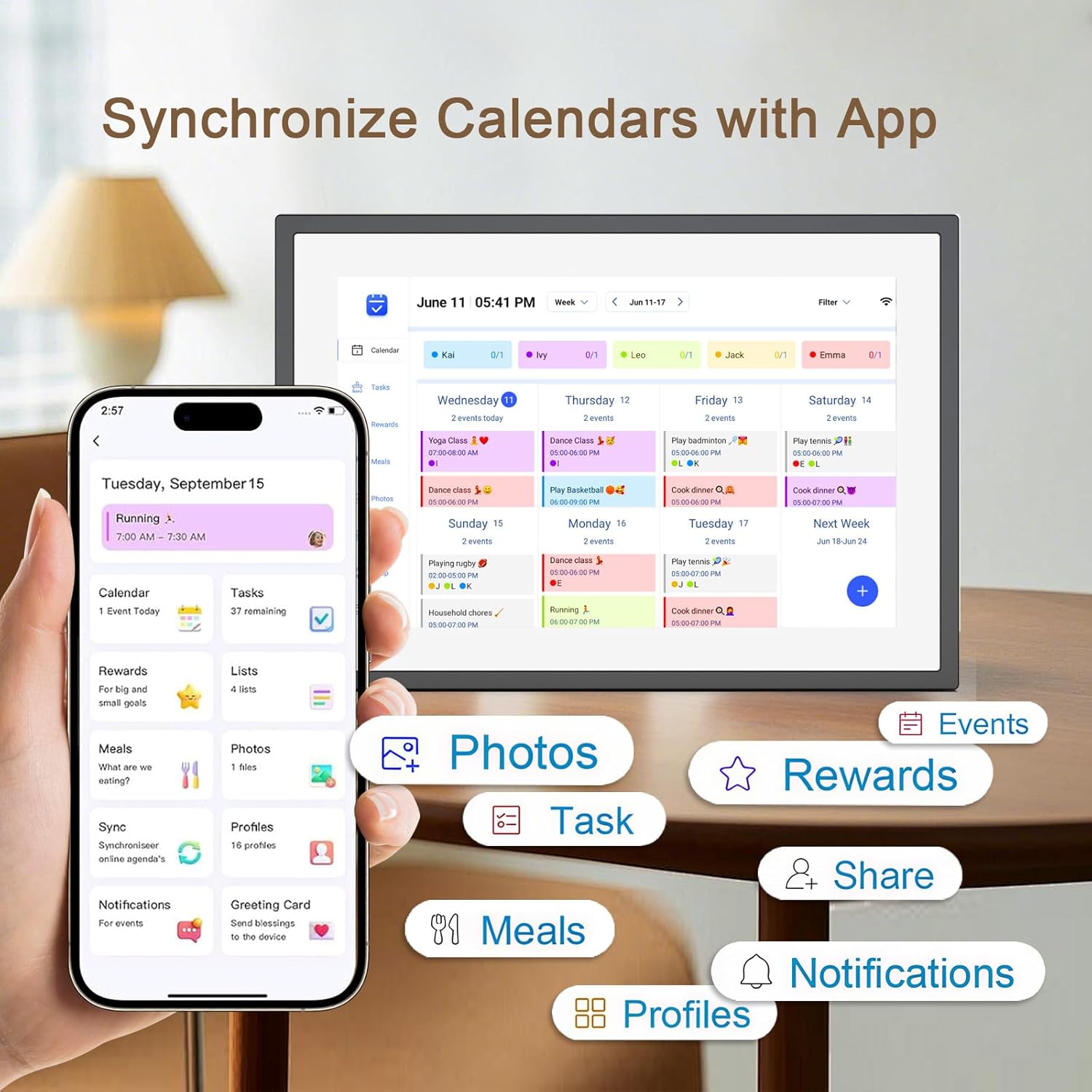


Product description


1 Chore Chart 2 Grocery List 3 Star Rewards 4 Dinner Plan 5 Event Syncing


Operation Video How to set and bind your calendar
1.Set up Digital Calendar. 2.Scan the code to download the eCalendar App on your phone.
3.Set up your email address to generate a code. 4.Digital Calendar input code to bind your phone.
5.Start using your Digital Calendar
The video showcases the product in use.The video guides you through product setup.The video compares multiple products.The video shows the product being unpacked. 10.1 inch Wall Planner Digital Calendar Merchant Video
How to Add Chores
Digital Calendar Add Chores
1.Click on the “+” to add Chores 2.Name chores, set date and time 3.Add members and assign chores, or assign chores to already added members
App add Chores to syn to Digital Calendar
1.Click Chores 2.Add new members 3.Click “+” to enter chores name, set the date and time 4.After saving, it can be syn to Digital Calendar
The video showcases the product in use.The video guides you through product setup.The video compares multiple products.The video shows the product being unpacked. 10.1 inch Wall Planner Digital Calendar Merchant Video
iCloud schedule sync to Digital Calendar
1.Click “Sync” 2.Select Email Account 3.Click “iCloud” 4.Copy email address
5.Open calendar 6.Click “Calendar” and select “Public Calendar”
7.Click “Share link” 8.Click “email” 9.Paste email address to the sender and send email
10.iCloud schedule Sync to Digital Calendar
The video showcases the product in use.The video guides you through product setup.The video compares multiple products.The video shows the product being unpacked. 10.1 inch Wall Planner Digital Calendar Merchant Video
Google schedule sync to Digital Calendar
1.Click “Sync” 2.Click “sync New Calender” 3.Click “Google”
4.Select “Two way sync” 5.Enter email number 6.Select language, click continue
7.Select email, click “sync calendar”
The video showcases the product in use.The video guides you through product setup.The video compares multiple products.The video shows the product being unpacked. 10.1 inch Wall Planner Digital Calendar Merchant Video
How to add lists and events
How to add lists
1.Click on the list 2.Add list 3.Name the list and add event 4.Click on it after completing the task
How to add events
1.Click “+” to enter the event 2.Set the start time and end time 3.Add members
The video showcases the product in use.The video guides you through product setup.The video compares multiple products.The video shows the product being unpacked. 10.1 inch Wall Planner Digital Calendar Merchant Video
How to send photos
1.Click “Photos”
2.Click image icon
3.Select the connected Digital Calendar and click “Pick from Gallery”
4.Select image, confirm and send
The video showcases the product in use.The video guides you through product setup.The video compares multiple products.The video shows the product being unpacked. 10.1 inch Wall Planner Digital Calendar Merchant Video

【All-In-One Digital Calendar】: WiFi digital calendar + planner touchscreen display + digital picture frame that will get the whole family organized and running smoothly. It’s never been easier to keep the whole family informed by assigning each member their own color and chores. (NOTE : Can Not Wall Mount)
【Versatile Family Assistant】: This versatile digital calendar planner goes beyond a calendar; it helps you create meal plans, access recipes, and watch cooking tutorials. With touch screen, you can easily access smart home apps to control your existing devices. It also serves as a digital picture frame to showcase cherished family memories.
【Easy Setup & Use】: Simply plug it in, connect to Wi-Fi, and sync your calendars – all your events will automatically populate and sync. Synchronize with the internet time servers to ensure the utmost accuracy.Add events or chores directly on the device or use the free to download mobile app. Compatible with Google Calendar, iCloud Calendar, Outlook Calendar, Cozi, and Yahoo.
【Chores Chart & Dinner Planner】: Easily add, edit, and track chores to promote independence with an interactive Chore Chart. Especially children, to develop healthy habits with an interactive chore chart. Display your family dinner plans to keep everyone informed and eliminate the daily “What’s for dinner?” question.
【Built-in Digital Picture Frame】: Supports sending Photos & Videos by Fr-ee App, sharing wonderful moments with your family & loved ones from anywhere. All your precious and cherished moments can be displayed on the digital photo frame instead of just being locked inside your phone.
【Say Goodbye to Family Chaos】: Our smart calendar digital wall is your ideal solution to reduce stress and keep everyone organized effortlessly. Transform your home into a hub of harmony and productivity. While also serving as a beautiful digital photo frame to relive your most cherished moments. Perfect for organizing busy family lives or for gifting!
10 reviews for 10.1 inch Wall Planner Digital Calendar & Chore Chart,Smart Touchscreen Interactive Display for Family Schedules,Hearth Display Digital Calendar, Digital Photo Frame Share Moments from Anywhere
Add a review
$89.99
Bezli –
Smart Calendar That Finally Got My Family Organized
After years of forgotten soccer practices and missed dentist appointments with three kids, this digital calendar has been a game changer for our chaotic household! Setup was pretty straightforward – just plugged it in, connected to our wifi and synced with our existing Google calendars. The 15.6 inch screen is the perfect size for our kitchen wall and the touch screen is responsive without being too sensitive. Love that each family member has their own color so we can instantly see who needs to be where – my husband’s work trips are blue, my events are purple, and each kid has their own color too. The meal planning feature has actually helped us save money on groceries since we’re not making as many last-minute takeout decisions. The photo frame function is a nice bonus – we have it cycle through family vacation pics when not actively being used for scheduling. Not perfect tho – had to restart it once when it froze after a power flicker, and the app occasionally needs to be closed and reopened to sync properly. The screen brightness adjusts automatically which is great for different times of day but sometimes its a bit too dim in certain lighting. My 10-year-old figured out how to add her own events within minutes which speaks to how intuitive the interface is. One unexpected benefit is how it’s reduced the “I didn’t know about that” excuses from everyone since the calendar is centrally located and always visible. The chore assignment feature has been surprisingly effective – something about seeing tasks digitally displayed makes the kids more likely to complete them without nagging! Would definitely recommend for busy families trying to keep everyone on the same page.
Patti A. Moore –
Great tool
This is an awesome tool for everyone. The grandkids do their chores and mark it off as they go and earn stars towards rewards. It helps me keep keep track of my daughter’s schedule so I don’t need to ask her when she gets off work. We can plan meals and so many other uses!!!
Trina Baker –
I love my photo frame!
I love this photo frame. If you can use a cell phone then it is super easy. I love how you can edit it right from the frame. I love that you can choise random, slide backwards and pause. I use a flash drive with 116,000 photos and I am sure I can put 3 times that on it. The only problem … I don’t see it as a problem but it seems like it two photos … the first will be very quick and the second will take a few extra seconds.So … I love it! Thank you!
c’est la vie🎉😘 –
Great Gift, Easy to Use, Functional
So I’ve had but this digital picture frame for a little while now, and I’m really happy with it. The setup was super easy — just plugged it in, connected it to WiFi, and downloaded the app. I love that I can send photos straight to it from my phone or even email them in. Makes it super convenient, especially when I want to add new pics and not use SD cards or USB drives.The screen is really nice, the image quality is sharp, colors look great, and it has a wide viewing angle thanks to the IPS panel. It’s also a touchscreen, which makes navigating settings and albums so much easier.Storage-wise, it comes with 32GB built-in, which is more than enough for hundreds (maybe thousands?) of photos and short videos. If you need more space, you can use a USB drive and SD cards too, a nice bonus.The auto-rotate feature works like a charm, and I like that it can be wall-mounted if I ever want to move it off the shelf. Right now it’s on a side table and fits in nicely with the rest of the decor.Overall, is functional, solid. Super easy to use, works exactly like I hoped, and it’s such a sweet way to keep my favorite pictures rotating throughout the day.
Bighorn –
Good buy for picture display
So far so good. I had two KODAK picture frames which I had to return as they both repeatably froze pictures. This frame cost less and works fine so far. Easy to use even for a senior like myself. This frame works off my USB flash drive but has many other features which are available if desired by user. No need for a smart telephone. I would have given this frame five stars but the instructions are in such small print they are a pain for my senior eyes.
denise –
BUY IT
Perfect! And easy to use! Give ad a gift for family members out of town and you can still upload to the device.
Vicki –
Android App Sucks for this Frame
Frame appears to be okay. But the app for Android sucks. I followed the instructions. Discovered I could only get 50 photos onto the frame from the app. If I had known the frame had such limited photo storage I never would have bought it. After selecting the 50 photos I could not figure out how to get the photos onto the frame. There were no buttons, nothing. Then I looked real close and discovered that the app controls are super tiny, at the bottom of the screen. And on my Android, that is where the Android on screen buttons are and there’s no way to get rid of them. So, I cannot access the app buttons to get my pictures on the frame. I was going to return the frame but I can’t figure out how to remove from the frame, the connection to my phone. So, now I’m stuck with this frame that I can’t use without purchasing a memory card. I wish I had just bought a more expensive frame to begin with. I do not recommend this frame.
Ella Marie –
The best gift from my husband for my new job!
This has been the perfect addition to my office at my new job. It works great and has 32GB of internal storage — I have over 300 photos saved and still plenty of room left. I also think it’s really cool that you can send photos and videos to other users through a shared digital album.I’ve had it for a couple of months now, and my only minor complaint is that I often have to tap a photo again to restart the slideshow from the main screen, which is mostly a calendar with a small photo in the center. Sometimes it only cycles through a few photos before returning to the main screen, and I wish the slideshow would just continue without stopping.That said, I love the timer feature — I use it to automatically turn off on weekends and after work, so I don’t have to remember to turn it on and off every day.Overall, I’m very happy with this purchase and would definitely recommend it.
Sushama –
The frame is not getting “switched on” after connecting to the power supply.Why it was not quality tested before sending to customer. It was a Christmas gift but received much embarrassment after presenting it. 😞Tried all the ways mentioned on the troubleshooting page. And alas, need to return it.Already raised a support ticket.
Amit Sharma –
Very limited functionality